Wednesday, 19 December 2012

Working with Taxonomy and JavaScript in SharePoint 2013

SharePoint 2013 has introduced some nice new features, one of which is the ability to manipulate managed metadata with the JavaScript Object Model. Unlike SharePoint 2010, we can now do a variety of operations with the Taxonomy Items in SharePoint 2013. Unfortunately, at the time of this writing, there is not a lot of documentation available on MSDN with regards to this particular feature.There is some preliminary documentation available for the Taxonomy in .NET Managed Client Object Model but the JavaScript API Reference has not been updated yet. So hopefully this blog will come in handy for someone looking to explore. All right lets get started:

First and foremost, you will have to load the SP.Taxonomy.js on your page explicitly as it is not loaded by default in SharePoint. Also make sure that you have loaded the SP.Runtime.js and SP.js files before continuing with your taxonomy code. Various errors like "SP.Taxonomy is not defined" or "Unable to get property 'TaxonomySession' of undefined or null reference" might come up if you have not loaded all the 3 necessary files on your page.

A simple way to load all the 3 files is with the jQuery.getScript function:


Now lets see some actual code which you can use to Manipulate the Taxonomy Items:

1) Query a particular Term Set and get all the Terms under it:


2) Create new Term Group under the Term Store:


3) Create new Term Set under a Term Group:


4) Create new Term under a Term Set:


5) Get Value of a Single Value Taxonomy Column in a List:


6) Get Values of a Multi Value Taxonomy Column in a List:


Hopefully you found this helpful. Happy SharePointing!

Saturday, 3 November 2012

Querying List Items from Large Number of Sites in SharePoint


When scouting the web for working with SharePoint Large Lists, you can find many articles which deal with fetching a huge number of items from one particular list. But very little data when you want to fetch items from a large number of sub sites. So after a little bit of poking around, I decided to blog about some of my findings here:

The Scenario:

Here are the conditions on which I was testing:
  • 1 Site Collection
  •  500 Sub sites
  •  1 Task List in Each sub site - > 500 Lists
  •  10 items in each List -> 5000 List Items

 So the total count of items I had to query was about 5000 and according to the test conditions, the items which would match the query were not more than 1200 at a time.

The Tools:

The tools I was using for measuring the performance were nothing extraordinary:

1)  I was using the StopWatch Class from the System.Diagnostics namespace. This class provides a fairly simple and easy mechanism for recording the time a particular operation took to execute.
This MSDN link has excellent examples on how to use the StopWatch class for performance measuring

2) The Developer Dashboard has always been my goto tool for performance measuring. I don’t know how I used to get by before I started using it. It provides a wealth of information about the page load. It can provide you with the time taken, the database calls made, the stack trace and a whole lot of other very useful information. A good tutorial on the Developer Dashboard can be found here.

SPSiteDataQuery:

The SPSiteDataQuery class is the heart of architecture when you want to get data from multiple sites. This class by itself does not use any form of caching and always returns data based on the real time queries. So even if it takes a bit longer to fetch the data, it is guaranteed that you will get all the current results and your users will never have to wait to see their new items to be returned by the query.

Here is the code for doing a simple query with the SPSiteDataQuery class:


Here is a stack trace of the internal methods which are called by the SharePoint framework when a SPSiteDataQuery is used:


So as you can see, it calls the SPRequest.CrossListQuery method which internally makes queries to the Database to fetch the relevant results.

When querying the database the procedure proc_EnumListsWithMetadata is used. You can have a look at this procedure in your Content DB. It queries several tables such as the dbo.AllLists, dbo.AllWebs etc. to fetch the relevant results.

Time taken to query 5000 items in 500 sub sites and return 1200 matching items:

 650ms average on each load.

CrossListQueryInfo:

The CrossListQueryInfo class is another mechanism you can use to fetch the List Items from multiple sites. This class internally uses the SPSiteDataQuery class to actually fetch the items from the database and when the items are returned, it stores them in the object cache of the Publishing Infrastructure. When any more calls to the same data are made subsequently, then the data is returned from the cache itself without making any more trips to the database.

The working of the CrossListQueryInfo class largely depends on the object cache of the Publishing Features of SharePoint server. So you cannot use this class in SharePoint 2010 Foundation or in sandbox solutions. Also, the default expiry time of the object cache is set to 60 seconds. So you might want to change that time depending upon your environment requirements.

Here is the same code for using the CrossListQueryInfo class:


Make sure to set the CrossListQueryInfo.UseCache as true if you want to use the caching features. Another very important thing to mention is that there are 4 overloads of the CrossListQueryCache.GetSiteData method and only 2 of them support caching.
So only use the methods which accepts the SPSite object as one of the parameters if you want to use caching in your code.
The Stack Trace of the CrossListQueryInfo class looks like this:


So as you can see, the Publishing.CachedArea is queried first to check whether the items exist in the cache. If they don’t exist, then a call to the SPSiteDataQuery is made which fetches the values from the database and stores it in the cache. All the next subsequent calls will find that the items are present in the cache so no more calls with the SPSiteDataQuery class will be made.

As a result, the very first call will take longer than a vanilla SPSiteDataQuery call as under the hood, the CrossListQueryInfo is not only fetching the items but also building a cache with them.

Time taken to query 5000 items in 500 sub sites and return 1200 matching items:
 2000ms on first load and 30ms average on each subsequent load until the object cache expires.

PortalSiteMapProvider:

The PortalSiteMapProvider is a class which can used to generate the navigation on SharePoint Publishing sites. The Global navigation, the Quick Launch and the Breadcrumb navigation can all be generated with help of the PortalSiteMapProvider. It also provides methods to query sub sites, lists and list items with help of caching.

The main advantage of the PSMP is that it queries the SharePoint change log to check whether any changes have happened to the data being queried. If yes, then only the incremental changes are fetched and thus the cache is updated accordingly.

However, my tests showed that the PortalSiteMapProvider.GetCachedSiteDataQuery method which is used to get items from multiple sub sites does not maintain an incremental cache and it only fetches the new or updated items when the object cache has expired.

So essentially when querying for items from multiple sites, the CrossListQueryInfo and the PortalSiteMapProvider behave almost similarly.

Here is the sample code for the PortalSiteMapProvider:


The stack trace for the PortalSiteMapProvider:


You can see that it’s very similar to the CrossListQueryInfo.

Time taken to query 5000 items and return 1200 matching items:
 2000ms on first load and 30ms average on each subsequent load until the object cache expires


So these are some of the methods you can use to query multiple List Items in multiple sites. Hope you had a good time reading through the post. 

Happy SharePointing!


SharePoint List Indexes : Under the Hood


You must be already aware that SharePoint provides the functionality to index columns so querying on them will be faster and that Throttling will not occur. Let us look at how SharePoint maintains this index and how exactly is it stored in the Content Database.

SharePoint maintains multiple tables in the content database with names starting with dbo.NameValuePair and followed by Culture Names where the Site ID, Web ID, List Id, Item ID and Value of the Indexed fields are stored.

If the value of the field is not Culture Dependent, e.g. the DateTime Fields, the Person or Group Fields etc. then the Value is stored in the table named dbo.NameValuePair.

If the value of the field is Culture Dependent e.g. the Text fields, then the value is stored in a table named dbo.NameValuePair_and followed by Culture Name. E.g. If the current language being used is English, then the value is stored in the table called dbo.NameValuePair_Latin1_General_CI_AS.

When a query is made to any of the lists which has an indexed field, then a JOIN is performed on the dbo.AllLists table and the relevant dbo.NameValuePair table and the joined data is presented.

Since the data in the indexed fields is stored completely in a different table, list throttling does not occur even if the query is made to more than 5000 rows for a normal user.

To test this out, I created a brand new WebApplication and new root level site collection under that with the Team Site template. After that, I created an index in my “Tasks” list on the Assigned To field which is a Person or Group field and added a sample task to the list. Then I opened the Content Database of the new WebApplication and had a look at the dbo.NameValuePair table:


The row which is highlighted with red contains the SiteId, WebId, ListId, ItemID and the value which I entered in the Assigned To field of my Tasks List. It is showing as 9 because it is a Person field and that is the ID of the User I assigned the Task to.

The 2 rows below the highlighted rows are the values of the Modified field from the “Site Pages” list. The values belong to the Home.aspx and the How To Use This Library.aspx as these 2 items are created by default in a Team Site.  This field is added to the Index by default and since it is a field of type Date and Time (which is not culture dependent) we can see it in the dbo.NameValuePair table.

After that I opened the dbo.NameValuePair_Latin1_General_CI_AS table and had a look in there:

So just like we saw earlier, all the data related to the Title field and its value (which is culture dependent) is stored in this table.

Composite Indexes:


SharePoint also allows composite indexes to be created on a list. However there are limitations on which type of columns can be included as the Primary and the Secondary Columns in the composite index.

If the Primary Column in a composite index is selected as column whose value is stored in the dbo.NameValuePair table, then the secondary column must also be selected which will be stored in the same table. So in short, if the primary column is language independent, then the secondary column in the index should also be language independent.

If the primary column in the list is language dependent, then you cannot specify a secondary column in the composite index.

Hope you had fun knowing more about indexes! Happy SharePointing!

Monday, 22 October 2012

The SPWebCollection.WebsInfo property

Recently, while browsing some MSDN docs, I came across the WebsInfo property of the SPWebCollection class. This property is a collection of the SPWebInfo class which contains metadata about each web in the given web collection.

Methods and properties such as SPWeb.GetSubWebsForCurrentUser,  SPSite.AllWebs and SPWeb.Webs, all return an object of the SPWebCollection class and the WebsInfo property can be used as a wrapper on some basic information about each web.

The properties available in the WebInfo class are:
  1.  Configuration
  2. CustomMasterUrl
  3. Description
  4. Id
  5. Language
  6. LastItemModifiedDate
  7. MasterUrl .
  8. ServerRelativeUrl
  9. Title
  10. UIVersion
  11. UIVersionConfigurationEnabled
  12. WebTemplateId
So when working with the returned collection of webs, if you refer to any of the above mentioned properties, then there is no further need to open an expensive SPWeb object of that web. The value of the property is simply returned from the SPWebInfo object. Here is some code which demonstrates how to use the WebsInfo property.

Now here is where it gets interesting. After deploying the above code, I switched on my Developer Dashboard to confirm that referring to any of the properties is indeed as non-expensive as claimed. And here is what my Developer Dashboard had to say regarding the call:


So only 1 database query was made with the procedure proc_ListAllWebsOfSite. After opening this procedure in the Content Database, it contained this piece of code:


In fact, if you want to refer to any of these properties directly from the SPWeb objects of the returned webs, then also no additional call will be made to the database to fetch the properties. Here is the code to demonstrate that:


As far as you access only these properties from the SPWeb object, there will be no need to make any more calls to the database.

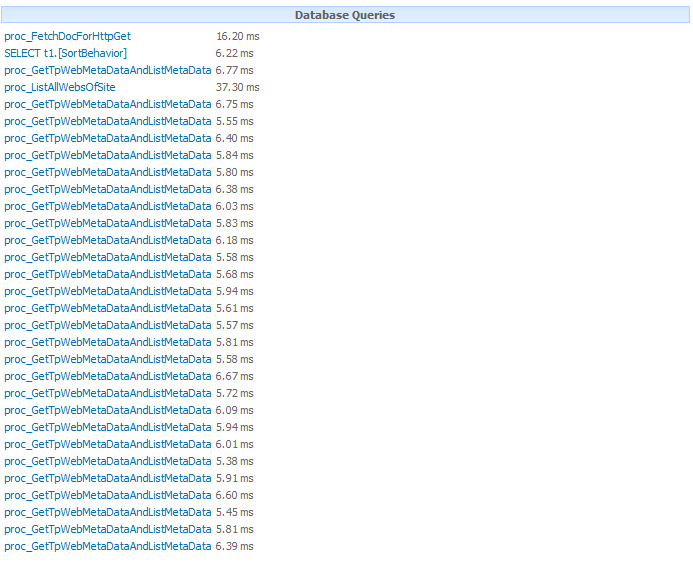
Now, If you want to refer to any of the other properties of the SPWeb object, things are going to get expensive. For example, if you want to refer to the SPWeb.SiteLogoUrl property, you will get the following result in the Developer Dashboard:


So as you can see SharePoint has to call the proc_GetTpWebMetaDataAndListMetaData procedure for each SPWeb object in order to return the SiteLogoUrl property.

If you use reflector or ILSpy and open the SPWeb Class in the Microsoft.SharePoint.dll , you will see that there are 2 internal methods called InitWeb( ) and InitWebPublic( ) which are responsible for initializing most of the properties of the SPWeb object. These methods in turn call the SPWeb.Request.OpenWebInternal( ) method which actually does the job of calling unmanaged code to open the expensive SPWeb object.

This was indeed a valuable learning for me as it would hugely impact the performance of my code. I hope it was a good learning for you too!

Tuesday, 16 October 2012

PowerShell Scripts for SharePoint 2010

I was working with Large Lists recently and needed to create huge amount of test data. I had to work with about 2,000 Sub Sites, 2,000 Lists, 6,000 documents and about 20,000 list items. So naturally the all so powerful PowerShell was the only answer for creating such an amount of test data with so much flexibility and ease of use. So I thought to write down here some of my scripts which someone might find useful:

1) Index Fields:


2) Delete Site:


3) Upload Document:


4)Add New Group to Site:


5) Create New Site:


6) Add User to Site:


7) Clear Object Cache on All Web Front Ends


8) Enable the Developer Dashboard


Hope you find them useful!

Monday, 15 October 2012

Caching Options in SharePoint 2010

So recently we had to look up options for caching data in our project and I took the responsibility of doing some research on the various options available for caching in SharePoint 2010. The basic motive behind implementing caching was to reduce the calls to the database and hence improve the performance.
Here are some of my findings:

1) BLOB Cache


Binary Large Object cache or BLOB cache is a disk based cache in SharePoint. This means that the data is stored on the Hard-Disk of the Web Front End Server.
Initially for the first call, data is fetched from the database and stored on the WFE. Any further calls to the same data are responded with the cached version hence avoiding a call to the database.

It can be used to store data in a variety of format including images, audio, video etc. Furthermore, you can configure it to store files based on extension types to suite your environment. (Eg: jpg, js, css etc)

The BLOB cache is turned off by default. You will have to enable it from the web.config file of your web application if you want to use it.

To enable it, open the relevant web.config file and find the following line:

<BlobCache location="C:\blobCache" path="\.(gif|jpg|png|css|js)$" maxSize="10" enabled="false"/>

change that line to:

<BlobCache location="C:\blobCache" path="\.(gif|jpg|png|css|js)$" maxSize="10" max-age="86400" enabled="true" />

a. location is the location on the hard disk where your cache will be stored.
b. path is the regular expression used to determine the type of data to be stored
c. maxSize is the size in GB of the cache
d. max-age specifies the maximum amount of time (in seconds) that the client browser caches files. If the downloaded items have not expired since the last download, the same items are not requested again when the page is requested. The max-age attribute is set by default to 86400 seconds (that is, 24 hours), but it can be set to a time period of 0 or greater.
e. enabled turns the caching on if true and turns it off if false.

2) Page Output Cache


SharePoint also uses ASP.NET output cache to store page output. This requires the publishing features to be enabled on the Site Collection and hence it is only available in SharePoint Server 2010 and not SharePoint Foundation. This cache is stored in the Memory of the Web Front End and hence is reset when the application pool recycles.

SharePoint supports something called as cache profiles in the output cache. This means that different profiles of the page are created for groups with different levels of access to the page. The page is rendered initially when the first request is made and cached. Now if another user with the same access rights loads the page, then it is served from the cache. This is done for each group with different set of permissions. Find more information about the Page output cache here.

3) Object Cache


Object Cache can be said as the most popular of the SharePoint caches. It is a Memory based cache. This means that the data is stored in the RAM of the Web Front End Server. As a result of this, this cache is reset if the application pool of the web app is recycled.

The publishing features of a Site Collection need to be enabled for this cache to become available. And due to this, it is available only in SharePoint Server 2010 and not SharePoint 2010 Foundation.

A variety of functionality in SharePoint 2010 uses the object cache internally. Mostly it is used to store data retrieved from Cross List Queries. Classes such as the PortalSiteMapProvider and CrossQueryListIfo use the object cache internally to store information returned. Other elements of SharePoint such as the Content Query WebPart and the Navigation also use the object cache for storing retrieved data.

Once the Publishing Features are enabled, you can configure the object cache from Site Actions-> Site Settings -> Site Collection Object Cache.

The default size of the object cache is set to 100 MB and the expiry time is set to 60 Seconds. You can adjust these values to suite your environment after careful consideration and testing. Ideally it should not be kept under 3 MB otherwise it will start affecting the performance.

4) Web Storage of the Browser


And last but not the least, we have the Web Storage of the Browser itself. This is not a SharePoint specific cache but it can be used effectively with SharePoint none the less. It contains about 10 MB of space allocated on the Client Side. So even the request to the Web Front End does not have to be made as the data is already present on the client side. Some JavaScript plugins like jStorage wrap around the Web Storage and provide an excellent interface to access it. Find more about the Web Storage here.