Update 29 Aug 2018:
This post used the beta endpoint of the Microsoft Graph which no longer seems to be working.
Please check out this post on how to Create an Azure AD App Registration using the Azure CLI 2.0:
https://www.vrdmn.com/2018/08/create-azure-ad-app-registration-with.html
---------------X---------------
In my previous post, we had a look at
how to authenticate to the Microsoft Graph API in PowerShell. In this post, lets have a look at how we can use the Microsoft Graph REST API to create an Azure AD App registration.
You need to create an App Registration in Azure AD if you have code which needs to access a service in Azure/Office 365 or if you are using Azure AD to secure your custom application. If you have been working with Azure/Office 365 for a while, chances are that you already know this and have already created a few App Registrations.
I was working on an Office 365 project recently where we had some WebJobs deployed to an Azure Web App. These WebJobs processed some list items in SharePoint Online. So naturally, we needed to use an Azure AD app to grant the WebJobs access to SharePoint Online.
For deploying this application, we were using
Azure ARM templates and executing them from PowerShell. With ARM templates, we were able to deploy the Resource Group, App Service Plan, and Web App for the WebJobs. But for creating the App Registration, the two options available to us were the
New-AzureRmADApplication cmdlet which is part of the Azure Resource Manager PowerShell or the
/beta/applications endpoint which is part of the Microsoft Graph API.
We found that the
New-AzureRmADApplication cmdlet is limited in features compared to the Graph API endpoint. For example, you can create an App registration with the cmdlet but you cannot set which services the app has permissions on. For setting that, you need to use the
Microsoft Graph API which has the full breadth of functionality. That is why going forward, the Microsoft Graph should be the natural choice for creating Azure AD app registrations.
The way we are going to create the app registration is by making a POST request to the
/beta/applications endpoint. The properties of our Azure AD app such as it's Display Name, Identifier Urls, and Required Permissions will be POSTed in the body of the request as JSON.
(As you have probably noticed already,
this endpoint is in beta right now. I will update this post once it is GA)
1) Getting the App Registration properties:
The JSON we will POST will be an object of type
application resource. Instead of manually "hand crafting" the JSON, it is recommended to download it from the Azure AD manifest of the app registration. Here is how:
a) Manually create an app in Azure AD by going to Azure AD -> App Registrations -> New application registration
b) Configure it as required. E.g. Set the display name, Reply Urls, the Required permissions and other properties needed for your app
c) Go to your app -> Click on Manifest and download the JSON
Once you have the required JSON, you can delete the manually created app. Going forward, when deploying to another tenant (or the same tenant again), you can just run the following PowerShell script and won't have to create an app registration manually again.
2) Creating the App Registration with Microsoft Graph API and PowerShell:
Here is the PowerShell script you will need to create the Azure AD App Registration. I should mention that the
Directory.AccessAsUser.All scope is needed to execute the /beta/applications endpoint.
After the script is run, we can see that the Azure AD app registration was successfully created:
What is happening in the script is that we are using the
Get-MSGraphToken function to get the access token for the Microsoft Graph with ADAL. Then using the token, we are making a POST request to the
/beta/applications endpoint. The JSON posted to create the app is pretty self explanatory in terms of displayname, identifier urls and reply urls.
What is really interesting is the
requiredResourceAccess property which, at first glance, seems to have some random GUIDs. But this is in fact the
Required permissions needed for my app. This JSON specifies that my app needs the following permissions:
1) Office 365 SharePoint Online: Read and write items in all site collections
2) Windows Azure Active Directory: Sign in and read user profile
Your app might need permissions to different services. Just configure the permissions manually as required and then download the JSON from the Manifest.
After the script is run, when I go to Azure AD, I can see that my app has been created and all required properties have been set:
3) Trusting the app:
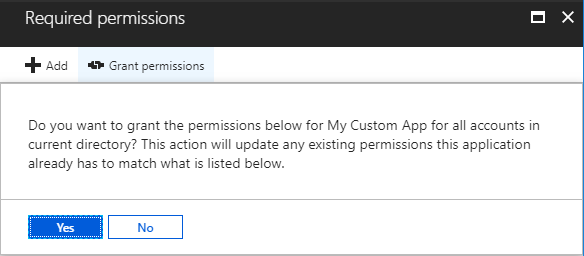
We have automated the creation of the application but it still needs to be trusted. Fortunately or unfortunately, it is still a manual process to trust the application. If you want to trust the app for all users in the tenant click on the Grant Permissions button:
Or if your application needs to be trusted by each user individually, you can skip this step. The user will be presented with a consent screen when they land on the application.
4) Troubleshooting with Fiddler:
If you have any errors while running the script, you can use Fiddler to determine the exact error being returned by the Microsoft Graph. I found it really helpful myself:
PowerShell would give me this:
But then I was able to get the real error from Fiddler:
Hope you found this post useful. Thanks for reading!