In my previous post, I wrote about
Getting started with the Office 365 Unified API. In that post, I introduced the new Office 365 Unified API and created a basic console application which used Azure AD for authentication and consumed the Office 365 Unified API. But chances are that a console application is not going to be a solution to most of your business needs. That is why, in this post we will see how the Office 365 Unified API can be used in an ASP.NET MVC application.
The complete code for this blog post is available on GitHub:
https://github.com/vman/O365UnifiedAPIMVC
Full credit to
Jason Johnston's article
Getting Started with the Outlook Mail API and ASP.NET on which I have based my code.
The Authentication flow:
Since the Office 365 Unified API uses Azure AD for authentication, these are the basic steps to get your application authenticated:
1) Request an authorization code
2) Request an access token based on the authorization code. (when you successfully make this request, you also get back the refresh token along with the access token)
3) Make a request to the desired resource e.g. "https://graph.microsoft.com/beta/myOrganization/users" using the access token.
4) When the access token expires, use the refresh token to get a new access token instead of going through the entire authentication flow again.
See the following links for more details on the Office 365 Unified API and the Azure AD authentication flow:
Authorization Code Grant Flow
Office 365 Unified REST API authentication flow
Register your application in Azure AD:
Now let's get started on how to actually go through this process in an MVC application.
As mentioned in my previous post, the very first thing you need to do is register your application in Azure AD. Here are the steps to do that:
https://msdn.microsoft.com/office/office365/HowTo/get-started-with-office-365-unified-api#msg_register_app
I have registered a Web Application in this case and here are the permissions I have granted:
Windows Azure Active Directory:
- Access your Organization's Directory
Office 365 unified API (preview):
- Read and write all users' full profiles
- Access directory as the signed in user
- Enable sign-in and read user profile
If the Office 365 unified API (preview) application is not available by default, click on "add application" and add it.
After you register your application, copy the ClientID and the ClientSecret in the web.config file of your MVC application.
<configuration>
<appSettings>
<add key="ida:ClientID" value="your client id" />
<add key="ida:ClientSecret" value="your client secret" />
</appSettings>
</configuration>
Now that the application is successfully registered in Azure AD, we can go ahead and write the code for the authentication flow in our MVC app.
The ASP.NET MVC Application:
The first thing you need to do now is to get the following NuGet package installed in your project:
Active Directory Authentication Library 2.14.201151115
Alright, we are finally ready to write some code now :)
In your MVC Controller, create an action called SignIn. We will use this action to redirect the application to the Azure AD Authorization Request Url:
This will take the application to the Azure AD login page where the user will have to enter his/her credentials. Once the credentials are successfully authenticated, the application will be taken to the
redirectUrl mentioned in the code. This
redirectUrl is a url to another Action in our MVC app. At this time, the url will also contain the Authorization code mentioned in step 1 and 2 above.
The Authorize action mentioned in the
redirectUrl looks like this:
This will get the Authentication code from the request parameters. Based on the Authentication code, it will make a call to Azure AD to get the Access token. Once we get the Access token, we will store it in the session so that we can use it for multiple requests.
A production level solution will probably need a better mechanism to store the Access token. Andrew Connell has written a great article on storing the access token in a database. See the article here:
Azure AD & ASP.NET MVC - Walk-Through Implementing ADAL & OWIN
Now that we have a valid Access token, we are ready to actually make a call to the Office 365 Unified API resource to get data. I have used a simple
HttpClient to make the REST call
Once the call is successful, you get JSON back which then you are free to mangle in your code.
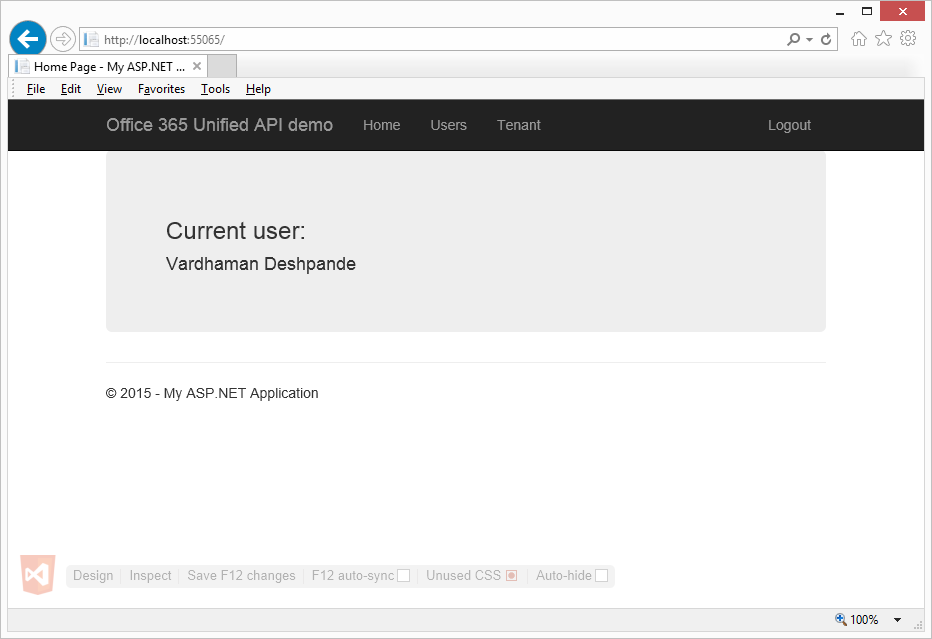
In my sample application, I have also written calls for getting all the users from the tenant and the tenant details. Check it out here:
https://github.com/vman/O365UnifiedAPIMVC
Additional Reading/Fiddling:
Here is the complete list of REST calls you can currently make using the Office 365 Unified API:
Office 365 unified API reference (preview)
Also, if you want to try out REST API without actually writing any code, this is a great tool which can help you make calls and see the response:
http://graphexplorer2.azurewebsites.net/
Only thing is you will need credentials to install the application in your Azure Tenant.
Hope you found this post useful!