Showing posts with label Microsoft Identity platform. Show all posts

Monday, 19 December 2022

Building a Microsoft Teams app: Posting a message to Teams on behalf of the current user

If you are building a Teams app and want to integrate with Teams channel messages, this post will be helpful to you. Specifically, we will be looking at posting a Teams channel message, from the app, on behalf of the currently logged in user.  For example, there could be a scenario where an event occurs within the Teams app and as a result a message needs to be posted to a Teams channel but instead of it coming from a bot, it needs to be posted by the logged in user's account.

Let's see how this can be done. 

1. Azure AD app and Permissions

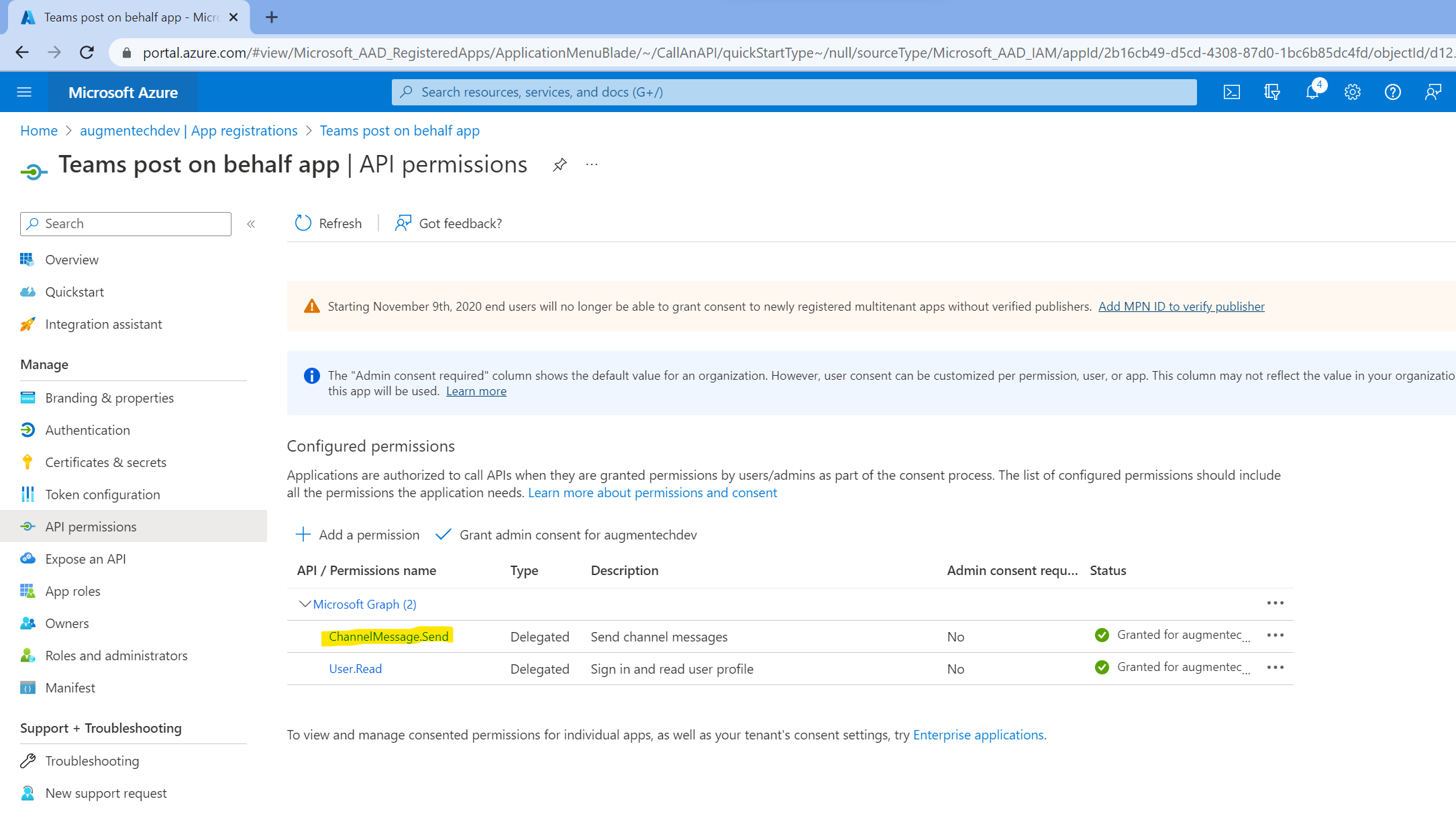
First thing we need is an Azure AD app setup with the Microsoft Graph ChannelMessage.Send delegated permission. This permission is needed for posting messages to Teams using the current user credentials.

I should mention setting up the right permissions is part of a larger configuration in the Azure AD app needed for Single Sign On (SSO) setup in Teams app. You can see the full configuration here: Register your tab app with Azure AD - Teams | Microsoft Learn 

2. Current user's id token from Teams JS SDK v2 

Once the permissions are setup, we need to setup our frontend so that it can grab the current user's id token from Microsoft Teams. More info on Azure AD id tokens here: Microsoft identity platform ID tokens - Microsoft Entra | Microsoft Learn 

Although this token is available from Teams JS SDK v2, it cannot itself be used to make graph calls. We need to exchange it for a Microsoft Graph access token. For this we will send the id token to our backend:

3. Getting Microsoft Graph delegated access token and posting message to Teams

It is recommended to do the token exchange as well as any further Graph calls from the backend of your app instead passing the Graph access token back to the frontend and making the calls from there:

In the code we first graph the id token from the Authorization header, then exchange the id token for a Microsoft Graph access token, then finally we are able to make a Graph call to post a message to Teams as the current user.


Hope this helps!

Tuesday, 16 November 2021

Interactively authenticate Microsoft Graph .NET SDK with Azure Identity library

In this post, we will have a look at the new recommended way of using the Azure Identity library to authenticate to the Microsoft Graph .NET SDK. Since v4 of the Microsoft Graph SDK, using the Azure.Identity library is the preferred way to auth with the Graph over the previous Microsoft.Graph.Auth method. You can read more about it here: https://github.com/microsoftgraph/msgraph-sdk-dotnet/blob/dev/docs/upgrade-to-v4.md#azure-identity

Specifically, we will have a look at Interactive browser based authentication where the user would enter their credentials and the Azure Identity library will fetch the access token based on them.

Before going through the code, let us check out the Azure AD App registration which would be used to authenticate to the Graph API

Since we are going to authenticate from a .NET Desktop console application, we will select Desktop as a platform and add the default redirect URIs. In addition, we will also add http://localhost to the list.

The supported account types can be as per your requirements. I have selected the app to be multi tenant.

Select the Allow public client flows to "Yes":  


Select the needed scopes:


Once all of this in place, we can use the following code to open a browser window and authenticate to the Microsoft Graph once the user enters their credentials:

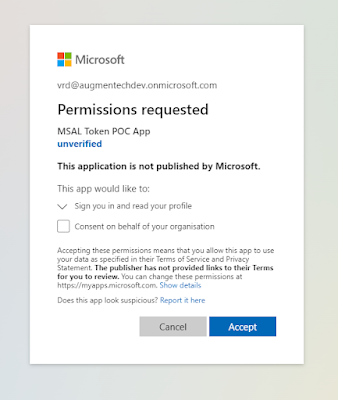
If this is the first time logging into this tenant, you will need to grant permissions to the app:


Once the authentication happens, you will see a similar message in the browser:


and our console window logs the current access token along with the expiry time and also uses the Graph SDK to get the display name of the current user:


Hope that helps!

Thursday, 5 March 2020

Office 365 CLI: Grant admin consent to specific scopes using Microsoft identity platform (AAD v2)

The Office 365 CLI is great tool for a variety of scenarios. Specifically, I find it super useful for CI/CD and automation. Since there is no official Microsoft Graph Azure DevOps task yet, the Office 365 CLI comes to the rescue when we want to make a call to the Graph from an Azure DevOps pipeline. Most recently, I was using it to deploy a Teams app when I noticed something interesting.

As I was calling the Office CLI from an automated script, I could not use the default deviceCode flow to login as there was no user interaction possible. So the other options were to use the username/password flow or use a custom certificate. I chose the former as it was very convenient and I could store the password securely in a Azure DevOps secret variable.

Now before using the Office CLI on a tenant, we need to consent to the AAD multi-tenant app used internally for authenticating to Office 356 services. This app is called "PnP Office 365 Management Shell" and the consent process is also described in the docs here: https://pnp.github.io/office365-cli/user-guide/connecting-office-365/

If this consent hasn't happened yet, we get the following error:

Error: AADSTS65001: The user or administrator has not consented to use the application with ID '31359c7f-bd7e-475c-86db-fdb8c937548e' named 'PnP Office 365 Management Shell'. Send an interactive authorization request for this user and resource.

If we go ahead with the default consent experience, we are presented with this screen where the CLI AAD app requests a large number of permissions on the tenant:


Now in my case, I did not need all the scopes the CLI was requesting. I only needed AppCatalog.ReadWrite.All to deploy my Teams app.

So that got me thinking, one of the benefits of using the Microsoft identity platform (also called AAD v2) is that apps can request consent to specific scopes:

With the Microsoft identity platform endpoint, you can ignore the static permissions defined in the app registration information in the Azure portal and request permissions incrementally instead, which means asking for a bare minimum set of permissions upfront and growing more over time as the customer uses additional app features. To do so, you can specify the scopes your app needs at any time by including the new scopes in the scope parameter when requesting an access token - without the need to pre-define them in the application registration information.
https://docs.microsoft.com/en-us/azure/active-directory/azuread-dev/azure-ad-endpoint-comparison#incremental-and-dynamic-consent

So armed with this knowledge, I tested whether I could request (and grant) only AppCatalog.ReadWrite.All to the PnP Office 365 Management Shell app.

Turns out it is indeed possible by going to this URL in a browser as an admin:

You will notice that in the client_id param, we are specifying the client id of the PnP Office 365 Management Shell app and in the scope param, we are only requesting the needed scope i.e. AppCatalog.ReadWrite.All


This time, we are presented with a significantly reduced scopes for consent. Notice only the "Read and write to all app catalogs" permission is present along with the couple of default permissions.

After granting the consent and then navigating to Azure AD -> Enterprise Applications -> All applications ->  PnP Office 365 Management Shell -> Permissions, you will see that only the requested scope was granted:


This way, you can only request the scopes you need and also include multiple scopes by separating them with a space

Automating the consent:


If you are like me and would like to automate the consent process as well, that is possible by using the Azure CLI:

00000003-0000-0000-c000-000000000000 is the Application ID of the Microsoft Graph resource in AAD. This will be the same for all tenants.

Hope you found the post useful!