Showing posts with label Multitenant. Show all posts

Monday, 1 November 2021

Working with MSAL and multiple Azure AD accounts in a React SPA

I came across an interesting scenario recently: I was working with a React SPA which used Azure AD for authenticating users, and it needed to work with multiple accounts logged in simultaneously. Specifically, we were building an Azure AD multi tenant application which needed to login to multiple M365 and Azure tenants and allow the user to manage all tenants at the same time.

The good thing was that MSAL v2 does support working with multiple accounts at the same time. So in this post, let's see how we are able to do that in a React SPA with MSAL js.

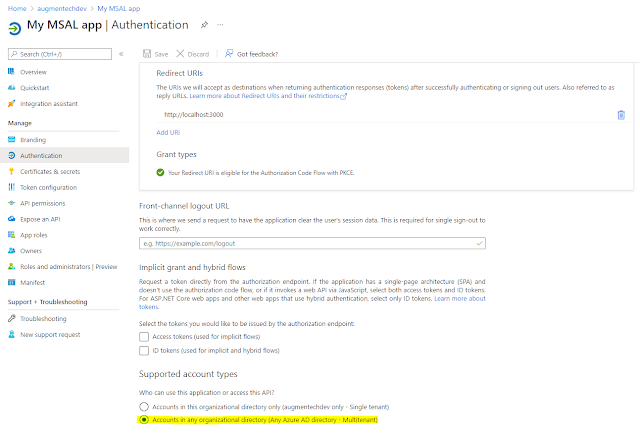
Before looking at the code, we would need to create a multi tenant Azure AD app which would be used to sign in to the different tenants. Step by step instructions can be found here: https://docs.microsoft.com/en-us/azure/active-directory/develop/tutorial-v2-javascript-spa#register-your-application


Once this is in place, we can start looking at the code itself. I have take the MSAL React tutorial as the starting point for this code and modified it to work with multiple accounts. If you want to build it from scratch, this would be a good starting point: https://docs.microsoft.com/en-us/azure/active-directory/develop/tutorial-v2-react

The very first thing we would need is to setup the configuration for our app: 
You will notice the authority is set to the /organizations end point. This is because our app is a multi-tenant app which would be used to login to different tenants.

With the config, we will now initiate a PublicClientApplication in the index.tsx file:

Now lets get to the most important App.tsx file: 

There are multiple things happening here. Let's unpack them one by one. 

First, we are using the MSAL react useMsalAuthentication hook to setup the authentication and get the login method which we will use later.

What is also important is the prompt: 'select_account' property in the request which would help us login with a new account when we are already signed in with one account.

The AuthenticatedTemplate and UnauthenticatedTemplate MSAL react components help us display different views when at least one user is logged in or no user is logged in respectively.

Next, lets look at the ProfileContent.tsx component:

Based on the homeId of passed in to this component as a property, we are using the PublicClientApplication.acquireTokenSilent method to first get the access token of the relevant user. 

Once the accessToken is fetched, we are making a call to the Microsoft Graph to get the basic details of the user. We are using the callMsGraph function for this.

The ProfileData component takes in all properties fetched from the graph and displays it.

The handleLogout function uses the PublicClientApplication.logoutRedirect function to log out the specific user.

So after everything is in place, we would be able to work with multiple users logged in simultaneously at the same time.

Hope this helps! 

As always, the code for this post can be found on GitHub: https://github.com/vman/ts-msal-react-tutorial

Tuesday, 5 January 2021

Microsoft 365 multi-tenant apps: Working with application permissions in Microsoft Graph

Creating multi-tenant (SaaS) apps in Microsoft 365 has been possible for a while now. Azure AD multi tenant apps allow us to host our custom applications in an Azure AD/M365 "home" tenant while enabling the apps to also have access to resources hosted in other tenants. To know more about multi-tenant apps, head over to the Microsoft docs: https://docs.microsoft.com/en-in/azure/active-directory/develop/single-and-multi-tenant-apps

Hosting applications in a home tenant as SaaS has a lot of advantages particularly for ISVs when it comes to product based applications. Users are able to consume the apps directly by signing into them instead of the conventional way of an admin having to deploy the product to the customer tenant first. It makes life easy for the admins as well as they don't have to go through complex deployment scripts and instructions. Moreover, after the application is deployed, new features and bug fixes can be rolled out to the application "on the fly" as opposed to releasing feature packs and hotfixes which again have to be installed manually.

So in this post, we are going to have a look at using the Microsoft Graph API in such apps configured to be multi tenant.

(Multi tenant apps also allow users with personal Microsoft accounts to sign into them but that is a topic for another day! Also, in this post we will only focus on the application permissions i.e. granting permissions to applications without a user context)

Configure an app to be a multi-tenant in the home tenant's Azure AD

1) When creating a multitenant app registration, make sure that the "Accounts in any organizational directory" is selected. Also, we need to add a redirect url as this will be the url the admin will be redirected to after successfully granting consent to our application. Ideally, this would be the landing page of your application but in the screenshot I am just using the AAD home as an example:


2) Assign required permissions. In this case, we are going to demo the code to get all the Microsoft 365 Groups on the tenant and also the root SharePoint Online site, so selecting the relevant permissions here:


3) Create a client secret and record it along with the client id. We will need this later in our code.


Granting consent to a multi tenant app in other "consumer" tenant

Next, let's have a look at how the multi tenant app hosted in it's home tenant can be granted permission to access resources in other tenants. 

What we will have to do is to construct a url for admin consent which would be unique to our application. An Azure AD admin of the other tenant will need to navigate to the url and then consent to granting the permissions to our app on the tenant. The Azure AD url will have the following structure:

In the link above, replace the client id with the client id of your multi tenant Azure AD app. Also, notice that we are using the /.default static scope which means that all permissions configured in the app will be requested for consent. 

When the admin navigates to this url, they will see the consent prompt:


Once the consent is granted, the multitenant app will have permissions to access the resources on the other tenant. This can be checked by going to:

Azure Active Directory > Enterprise Applications > All applications and searching for our app there.


This confirms that the multi tenant app has permissions on this tenant. Also this process can be repeated on any number of Azure AD/M365 tenants.

Use the Microsoft Graph API to get Microsoft 365 data from the consumer tenant

With everything setup and also the admin consent granted, let's have a look at the Microsoft Graph code to get data from the consumer tenant.

In this code, I am using the .NET SDK for Microsoft Graph found on nuget here:

Microsoft.Graph

And the new preview version of Microsoft.Graph.Auth found here:

Microsoft.Graph.Auth

And finally here is the code to get all the Microsoft 365 Groups and the SharePoint root site url of the consumer tenant. For the sake of simplicity, I am using a .NET Core console application:

And we are able to get the data from the consumer tenant back:


Thanks for reading! Hope this helps.

Monday, 7 November 2016

Introducing: SharePoint Online Public CDN Manager

Update 24th March 2017: This post was updated since the general availability of the Office 365 Public CDN. The SPO CDN Manager now supports the GA version of the Office 365 Public CDN.

The Office 365 Public CDN recently reached General availability. It allows static assets like images, JavaScript, CSS etc. to be hosted in a globally available CDN. Find out more about it here.

With the general availability, the Office 365 PowerShell and SharePoint Online CSOM were also updated with APIs which could be used to manage the Public CDN.

Although the APIs are handy, what was missing was a nice and simple GUI to manage the CDN settings. So I set out to create an app which would give a nice overview of all the CDN settings including folders in the tenant which have been configured as Origins, file types which have been set to be pushed to the CDN and finally a way to enable/disable the CDN.

Introducing the SharePoint Online Public CDN Manager:


Check it out now: https://spocdnmanager.azurewebsites.net/


Checkout the code on GitHub: https://github.com/vman/SPO-CDN-Manager


As you can tell, the SharePoint Online Public CDN Manager can be used to:

1) Add/Remove CDN Origins i.e. SPO Libraries which will be used to store static assets.

2) Add/Remove File types. Which files will be pushed to the CDN.

3) Enable/Disable the CDN on a tenant.

4) Create the default CDN origins specified by the Office 365 Public CDN

The Implementation:


1) It is an MVC app which is Multi Tenant and hosted on the Azure App Service. It uses the March 2017 Release of SharePoint Online CSOM to talk to SharePoint.
https://dev.office.com/blogs/new-sharepoint-csom-version-released-for-Office-365-march-2017

2) For the UI, the Office UI Fabric core styles are used together with the Office UI Fabric JS Components


3) The app requires "Office 365 SharePoint Online" Full Control permissions on all site collections. This is because the CDN is a tenant wide setting and can be modified only by Tenant Administrators or SharePoint Administrators.


The app uses Delegated (User) authentication for every call to SharePoint so that only Tenant/SharePoint Administrators can access the CDN Properties:
So even if a user who is not an Admin lands on the page, they are not able to fiddle with the CDN settings.

Tenant vs Office365Tenant


Something interesting I came across while working on this. There are 2 classes available in CSOM now to manipulate tenant settings:

Microsoft.Online.SharePoint.TenantManagement.Office365Tenant

Microsoft.Online.SharePoint.TenantAdministration.Tenant

Both these classes have the Public CDN properties which can be used to manage the CDN. But the interesting this is that the Tenant class requires the Tenant Administration Url (https://yourtenant-admin.sharepoint.com) to instantiate but the Office365Tenant class can be instantiated by a regular site url in SharePoint Online. (https://yourtenant.sharepoint.com/sites/publishing)

If a regular SharePoint site url is used to instantiate the Tenant class, you get an exception saying:

Current site is not a tenant administration site.

This is why I have used the Office365Tenant class. Checkout the code on GitHub for more details.

Workaround for Internet Explorer "Quirks":


The SPO CDN Manager has been tested on latest version of Chrome, Edge and IE. It works without any issues on Chrome and Edge.

But, to get it working on IE, you will have to add the remote site https://spocdnmanager.azurewebsites.net to IE's trusted sites.

Thanks for reading! Hope you find the SPO CDN Manager useful.