Showing posts with label .NET Core. Show all posts

Thursday, 25 January 2024

Get structured JSON data back from GPT-4-Turbo

With the latest gpt-4-turbo model out recently, there is one very helpful feature which came with it: The JSON mode option. Using JSON mode, we are able to predictably get responses back from OpenAI in structured JSON format. 

This can help immensely when building APIs using Large Language Models (LLMs). Even though the model can be instructed to return JSON in it's system prompt, previously, there was no guarantee that the model would return valid JSON. With the JSON mode option now, we can specify the required format and the model will return data according to it. 

To know more about JSON mode, have a look at the official OpenAI docs: https://platform.openai.com/docs/guides/text-generation/json-mode

Now let's look at some code to see how this works in action:

I am using the Azure OpenAI service to host the gpt-4-turbo model and I am also using the v1.0.0.-beta.12 version of the Azure OpenAI .NET SDK found on NuGet here:

https://www.nuget.org/packages/Azure.AI.OpenAI/1.0.0-beta.12

What is happening in the code is that in the system message, we are instructing the LLM that analyse the text provided by the user and then extract the cities mentioned in this text and return them in the specified JSON format. 

Also important is line 22 where we explicitly specify to use the response format as JSON.   

Next, we provide the actually text to parse in the user message. 

Once we get the data back in expected JSON schema, we are able to convert it to objects which can be used in code.

And as expected we get the following output:


Hope this helps!

Wednesday, 14 September 2022

Partially update documents in Azure Cosmos DB

I have been working with Cosmos DB for a while now and until recently, there was one thing which always annoyed me: When updating a JSON document stored in a container, there was no way to only modify a few selected properties of the document. 

The entire JSON document had to be fetched by the client first, then locally replace the properties to be updated, and then send the entire document back to Cosmos DB and replace the previous version of the document. 

This was always a challenge because first, it added more work for developers and second, there could be concurrency issues if multiple clients could be downloading multiple copies of the document and updating the data and sending back their copy.

But fortunately, now it's possible to partially update a document in Cosmos DB and basically do a PATCH operation while only sending the properties to be changed over the wire. 


So in this post, let's have a look at the different ways in which we can partially update documents in Cosmos DB:

Setting up by creating a Cosmos DB document

First, we will create our sample document using code. I should mention I am using v3.30.1 of Azure Cosmos DB .NET core package from nuget: Microsoft.Azure.Cosmos

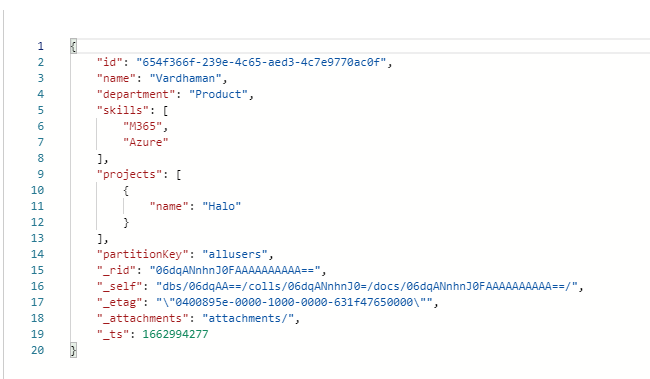
As you can see this is a simple document representing a User object with a few attached properties:


Now in order to only change a few properties in the object, we need to use the Partial document update feature in Azure Cosmos DB 

Update document properties

Now lets have a look at how we can modify and add properties to the User object:

In the code, we are updating an existing property of the document as well as adding a new property. Also, we are only sending the properties to be modified over the wire. 


We can also send both properties in a single operation by adding the operations to the patchOperations array.

Update elements in array


Just like document properties, we can also update single elements in an array in the document. Elements can be updated, added, added at a specific index and also removed from an array:


Update objects and their properties


The properties of a JSON document can themselves be objects as well. The Azure Cosmos DB patch operations can also be used to update properties of specific objects as well as modifying the objects themselves.

Hope this helps! For more details, do have a look at the Microsoft docs for Azure Cosmos DB partial updates: https://docs.microsoft.com/en-us/azure/cosmos-db/partial-document-update

Monday, 20 July 2020

Microsoft Teams Bot Framework: Mention a user in an Adaptive Card

Microsoft Teams announced support for Adaptive Cards 1.2 recently. With that, a nifty feature to allow mentioning users in Adaptive Cards posted in Teams was also introduced. This allows us the ability to send a notification to the user and can draw their attention towards the card.

User gets a notification of the mention:


(click to zoom)

Other users are able to contact the user directly from the mention in the card:


(click to zoom)


In the docs, there is a great example of the JSON we need to send to Teams to post the card containing the mention. So in this post, lets see how we can do this when using the Bot Framework .NET Core SDK:

For this code to work, we will need the following Nuget packages:


Quick note: I noticed that the user mentioned is only notified when the Adaptive card is first created. If you update the same adaptive card later and mention the same user again, they are not notified. This is probably for the best as the Adaptive card might be updated several times and if you got a notification every time, it might be really annoying to the user.

Hope you found this post useful!

Wednesday, 24 June 2020

Using .NET Standard CSOM and MSAL.NET for App-Only auth in SharePoint Online

So after long last, the .NET Standard version of SharePoint Online CSOM was released yesterday! The official announcement can be found here: https://developer.microsoft.com/en-us/microsoft-365/blogs/net-standard-version-of-sharepoint-online-csom-apis/

One of the key differences compared to the .NET Framework CSOM was that the authentication is completely independent of CSOM library now. Previously, there were native classes like SharePointOnlineCredentials which were used for auth, but they have been removed now.

Since .NET Standard CSOM now uses OAuth for authentication, it's up to the developer to get an access token and pass it along with the call to SharePoint Online. The CSOM library does not care how the access token was fetched. 

So in this post, let's have a look at getting an Application authentication (aka App-Only) access token using MSAL.NET and use it with the new .NET Standard CSOM to get data from SharePoint Online.

When making app-only calls to SharePoint Online, we can either use an Azure AD app registration (with the Client Certificate) or we can use SharePoint App-Only authentication created via the AppRegNew.aspx and AppInv.aspx pages. (There are other workarounds available but that would be out of scope for this post) I go into more details about this in my previous post: Working with Application Permissions (App-Only Auth) in SharePoint Online and the Microsoft Graph

The recommended approach is to go with an Azure AD App Registration and the Client Certificate approach so that is what we will be using. To do that, first we will need to create an App Registration in the Azure AD portal and configure it with the Certificate, SPO API permissions etc. Here is a detailed walk-through on this in the Microsoft docs: https://docs.microsoft.com/en-us/sharepoint/dev/solution-guidance/security-apponly-azuread 

Let's have a look at a few important bits of my Azure AD app registration:

The certificate:


The consented SharePoint permissions:


Once the Azure AD App Registration is configured correctly, we can start looking at the code. 

We will be using a .NET Core 3.1 Console app project for this along with the following nuget packages:


And finally, here is the code which uses MSAL.NET to get the access token and attaches it to the .NET Standard CSOM requests going to SharePoint:


Note: Make sure that you are using the right way to access the certificate as per your scenario. Here, for demo purposes, I have installed the certificate to my local machine and I am accessing it from there. In production scenarios, it's recommended to store the certificate in Azure Key Vault. More details here

And when I run the code, I am able to get the title of my SharePoint site back:
 

Hope you found this post useful! I am very glad .NET CSOM Standard is finally available and we are able to use it .NET Core projects going forward. This is going to make things so much easier!

Monday, 24 February 2020

Microsoft Bot Framework v4: Send proactive messages to Teams channels and users

What is a Bot Framework Proactive message?

Usually, for starting a conversation with a Microsoft Teams bot, the user has to initiate the conversation either by sending a personal message to the bot, or by mentioning the bot in a Teams channel or by invoking a messaging extension.

With proactive messaging, the bot can start a conversation with a user (or in a Teams channel) without anyone having to invoke the bot first. This conversation can be started based on any custom logic fit for your application e.g. The occurrence of  an external event, or a webhook getting triggered or even on a scheduled periodical basis.

More about Bot Framework proactive messages here: https://docs.microsoft.com/en-us/azure/bot-service/bot-builder-howto-proactive-message?view=azure-bot-service-4.0&tabs=csharp

I should mention that the bot will first need to be installed in the Team, if you want to send a proactive message to a Teams channel, or to the users who are part of that team.


How to send proactive messages?

So in this post, let's look at a few code samples which make it very easy for our Teams Bot to send proactive messages to users or channels in a Team.

These code samples are based on a standalone .NET Core console app. This is mainly to show that as long as you have the necessary information, your code doesn't need to be running under the Bot messaging endpoint. Once you have the information from the Bot messaging endpoint, the proactive messaging code can run from any platform e.g. from an Azure Function.

If you have a look at the Bot Framework code samples published by Microsoft, they all use code which is running under the messaging endpoint. This initially led me to believe that even for proactive messaging, the code should live under the same endpoint. But as we will see in this post, that is not the case.

What are the prerequisites?

As mentioned before, our bot will need to be installed in a Team first. This will allow the bot messaging endpoint to receive the required values from Teams and send it to our proactive messaging code. If the bot is not installed in the Team, you will get a "Forbidden: The bot is not part of the conversation roster" error.

Base URL (serviceUrl)

This is the Url to which our proactive messaging code should send all the requests. This Url is sent by Teams in the Bot payload in the turnContext.Activity.serviceUrl property. For all intents and purposes this url will remain constant but after having a discussion with Microsoft, they have recommended that this url might change (very rarely) and our bot should have the logic for updating the stored base url periodically from the payload sent to the bot. More about the Base Url here: https://docs.microsoft.com/en-us/azure/bot-service/rest-api/bot-framework-rest-connector-api-reference?view=azure-bot-service-4.0#base-uri

Internal Team Id

This is the internal team id which is not the same as the Office 365 Group Id. The internal team id is in the following format: 19:bf2b184e7cbb4f9f9ca1b47f755cd943@thread.skype

You can get the internal team id from the Bot payload in the channelData.team.id property. You can also get this id through the Microsoft Graph API: https://docs.microsoft.com/en-us/graph/api/resources/team?view=graph-rest-1.0#properties

Channel Id

If we want our bot to post to a specific channel in a Team, then we will need the channel id as well. The format for the channel id is exactly the same as the internal team id. Also, you can get the channel id from the bot payload as well as the Microsoft Graph api: https://docs.microsoft.com/en-us/graph/api/resources/channel?view=graph-rest-1.0#properties

Internal Teams User Id

This would only be needed if you want to send a proactive personal message to a specific user. For all users in a team, Teams maintains an encoded user id so that only bots installed in a team are able to message users. To get this user id, our bot needs to call the conversations/{conversationId}/members REST API endpoint. Fortunately for us the Bot Framework wraps this call in a handy SDK method as shown in the third code sample below.

So once we have all the required values from the Bot messaging endpoint, we are able to send proactive messages. For this sample code, I am using the Microsoft.Bot.Builder v4.7.2
https://www.nuget.org/packages/Microsoft.Bot.Builder/

1) Post a proactive message in a Teams channel


(click to zoom)

2) Post a proactive message in a Teams channel and mention a user in it


(click to zoom)


3) Post a proactive personal message to a user


This code has been updated for Bot Framework v4.12.2 NuGet Gallery | Microsoft.Bot.Builder 4.12.2

Also, before running this code, make sure that the user has installed the bot app in the personal scope or is a member of a Team which has the bot installed.

(click to zoom)

Hope you found the post useful!

Wednesday, 30 October 2019

Getting anonymous thumbnails of SharePoint Online files with Microsoft Graph

If you are developing an application based on the Microsoft 365 platform which also uses files stored in SharePoint Online, chances are that you might want to make the file thumbnails available on a device (or client) without going through SharePoint authentication. It could be a mobile app or Microsoft Teams app which needs to show the thumbnails. In these cases, the end user has already signed into the app so might not be a good idea to ask them to sign in again to access files stored in SharePoint.

One thing which comes to mind straight away is to use the Data URLs of the thumbnail images. But data URLs can get fairly big as they are just the base 64 representation of the images. Also, if you have large images and you need to display a lot of them at the same time, the data travelling over the wire to your device can get fairly big.

Fortunately, the Microsoft Graph provides a great way to get the thumbnail of a file. It is also provided as an anonymously accessible link (which expires in 1 hour) so we don't have to worry about the user having to sign in again to SharePoint. More details on Microsoft docs:
https://docs.microsoft.com/en-us/graph/api/driveitem-list-thumbnails?view=graph-rest-1.0&tabs=http

This approach works for getting the thumbnails of any type of file stored in SharePoint Online. But in this post, I am going to focus only on modern pages.

First, let's see how the code for this looks in the Microsoft Graph .NET SDK:

This code translates to the following Graph REST API call:

and the response:
(click to zoom)

The thumbnail url returned here can be used on any device, app or Adaptive Card to display the image without the need for authenticating to SharePoint. But bear in mind that this image url is only valid for 1 hour as there is an Azure AD access token attached to it. After that you might have to request a new url by making the same Microsoft Graph call.

Hope this helps!