Showing posts with label REST API. Show all posts

Wednesday, 26 July 2017

Working with the Page Comments REST API in SharePoint Communication sites

If you have been playing around with SharePoint Communication sites, you might have noticed there is commenting functionality available now on site pages. Digging deeper on how this functionality is implemented gives us some interesting findings!

There is a Comments REST API available which is used to get and post comments for a particular page. This endpoint is an addition to the SharePoint REST API, which means you will already be familiar with using it.

I checked with Vesa Juvonen from Microsoft and he has confirmed this is indeed a public API, which means it can be used in third party solutions and is not something internal used only by Microsoft.


There are a few interesting things about how the commenting solution is implemented:
  1. Comments are not stored in the page list item (which makes sense in terms of scalability). They appear to be stored in a separate data store.
  2. Comments are stored with references to list guids and item ids. This means that if you move or copy a page, comments for that page will be lost.
  3. Only a single level of replies is allowed. Which in my opinion is a good thing as this will prevent long winding conversations and force users to keep their comments brief.

Now lets have a look at the SharePoint Comments REST API:

1) Get comments for a page:

/_api/web/lists('1aaec881-7f5b-4f82-b1f7-9e02cc116098')/GetItemById(1)/Comments

This will bring back all the top level comments for a page which has the id 1 and lives in a site pages library with guid "1aaec881-7f5b-4f82-b1f7-9e02cc116098". 

2) You can also use the list title to get the list and the comments:

/_api/web/lists/GetByTitle('Site Pages')/GetItemById(1)/Comments

3) Get replies for each comment:

/_api/web/lists('1aaec881-7f5b-4f82-b1f7-9e02cc116098')/GetItemById(1)/Comments?$expand=replies

4) Get replies for a specific comment:

/_api/web/lists('1aaec881-7f5b-4f82-b1f7-9e02cc116098')/GetItemById(1)/Comments(2)/replies

Where 2 is the id of the comment. 

5) Post a new comment on a page by making a POST request to:

/_api/web/lists('1aaec881-7f5b-4f82-b1f7-9e02cc116098')/GetItemById(1)/Comments

6) To Delete a comment or a reply, Make a DELETE request to:

/_api/web/lists('1aaec881-7f5b-4f82-b1f7-9e02cc116098')/GetItemById(1)/Comments(2)

Since each comment or reply gets a unique id, the method is same for deleting both.

Here is some sample code I put together to use the Comments REST API in an SPFx webpart:


Get comments for a page:


Post a comment on a page:


Code for this web part available on GitHub: https://github.com/vman/spfx-sitepage-comments/

Quick note about running the webpart on the SharePoint Workbench: If the page on which you want to read or post comments lives in a communication site with url:

https://tenant.sharepoint.com/sites/comms/SitePages/ThisIsMyPage.aspx

Then make sure you are running the workbench from the same site:

https://tenant.sharepoint.com/sites/comms/_layouts/15/workbench.aspx

Hope you found this post interesting!

Tuesday, 25 April 2017

Using TypeScript async/await to simplify your SPFx code

I recently learned about the Async/Await functionality in TypeScript and I was really surprised how easily you can simplify your code with it. Using Async/Await, you can get rid of spaghetti code as well as long chains of Promises and callbacks in your asynchronous functions.

The Async/Await functionality has been around since TypeScript 1.7 but back then it was only available for the ES6/ES2016 runtime. Since TypeScript 2.1, async/await works for ES5 and ES3 runtimes as well, which is very good news. I am kicking myself that I did not start using it sooner.

As with anything new I learn, I have tried to apply it to SharePoint as well to see how I can improve my development experience. Turns out using async/await can really make your SharePoint Framework code simpler and more readable. Lets have a look at some examples and compare between using Promises and Async/Await in your code.

Also, an important thing to note is that although I am making comparisons between using Promises and using async/await, ultimately the aync/await code is downleveled to using Promises by the typescript compiler. If the runtime does not have a native Promise object, we should make sure we have the right polyfills available.

The comparison here is more around code readability and conciseness.

All the code I am using is running inside a SharePoint Framework webpart. So, when you see the 'this' keyword in the code, it refers to my SPFx webpart which inherits from the BaseClientSideWebPart class. Since I am calling the code from inside my webpart, I have access to 'this'.

Here is my import statements for the code:


Simple example using Promises and 'then' callbacks:


Same code using async/await:


Here is a slightly more complex example with code which accepts an array of SharePoint login names and uses the batching framework to get the user profile properties of each user in the array.

You will need the IPerson interface for this:


Complex example using Promises and 'then' callbacks:


Same code using async/await:


As you can see, there is significantly less callbacks when using async/await and the code is also a lot more readable.

Hope you found this post useful. Thanks for reading!


Friday, 21 April 2017

Create/Update SharePoint list items with REST without the '__metadata' property

When updating list items in SharePoint with the REST API, we need to know the ListItemEntityTypeFullName of the list item we are planning to update. There are some good examples on MSDN regarding this https://msdn.microsoft.com/en-us/library/office/dn292552.aspx

The ListItemEntityTypeFullName property (SP.Data.ProjectPolicyItemListItem in the previous example) is especially important if you want to create and update list items. This value must be passed as the type property in the metadata that you pass in the body of the HTTP request whenever you create and update list items.

For example, when you want to update list items in a list called "MyCustomList" you need to know the ListItemEntityTypeFullName of the list items before hand. In this case, it will be SP.Data.MyCustomListListItem. Most examples around the internet do this by querying the list first and then getting the ListItemEntityTypeFullName property from it and using that in the call to update the list items.

If you do not specify the ListItemEntityTypeFullName, you get this error
An entry without a type name was found, but no expected type was specified. To allow entries without type information, the expected type must also be specified when the model is specified

The good news is that you only need to use the entity type full name when you are using "application/json;odata=verbose" as your Accept and Content-Type headers.

If you are using "application/json;odata=nometadata" in your Accept and Content-Type headers, then you do not need the ListItemEntityTypeFullName as well.

Here is are a couple of quick gists I have put together to show how we can create and update list items without specifying the ListItemEntityTypeFullName. I should mention I have tested these only in SharePoint Online at the time of this writing:

1) Create list item without specifying ListItemEntityTypeFullName


2) Update list item without specifying ListItemEntityTypeFullName


Monday, 23 January 2017

Working with the REST API in SharePoint Framework (SPFx)

The SharePoint Framework reached GA recently. You can see the release notes here: https://github.com/SharePoint/sp-dev-docs/wiki/Release-Notes-GA

One of these changes from the preview versions was how REST requests are handled when talking to SharePoint. Lets have a look at what changed and also see some code samples I created when tinkering around with the latest changes.

Before that, you should know that I have also updated my previous SPFx REST API related posts for the SPFx GA version. If you are interested, you can have a look here:

Batch REST requests in SharePoint Framework (SPFx) using SPHttpClientBatch

Making a POST request to SharePoint from an SPFx webpart

1) SPHttpClient, SPHttpClientConfiguration and the '@microsoft/sp-http' package


The HttpContext and all REST API related operations are part of the @microsoft/sp-http package.

The class SPHttpClient has inbuilt get and post methods which make it really easy to query SharePoint. The methods automatically add headers such as ODataVersion and Request Digest which are needed when making a REST call to SharePoint.

The SPHttpClientConfiguration class can be used to either let default headers be set on the REST request or it also allows you to override certain headers if needed. Lets have a look at this:

2) GET requests


Making GET requests to SharePoint is really easy when you specify the SPHttpClientConfiguration as SPHttpClientConfigurations.v1. It sets the following headers to your REST request. You don't have to set any headers manually.

consoleLogging = true;
jsonRequest = true;
jsonResponse = true;
defaultSameOriginCredentials = true;
defaultODataVersion = ODataVersion.v4;
requestDigest = true

First, you will need to import the required modules from the @microsoft/sp-http package as mentioned earlier:

Then use this code to make a GET request to SharePoint. The following code makes 3 different requests to SharePoint. The first one gets the current web, the second one gets the current user from the User Information List and the third one gets the current user properties from the User Profile Service:


3) POST requests


For making a POST request, you have to use the SPHttpClient.post method. I have a separate post around this. Check it out here: http://www.vrdmn.com/2016/08/making-post-request-to-sharepoint-from.html


4) Calling SharePoint Search REST API with OData Version 3


With the preview SPFx versions, the default OData Version attached with each SPFx REST request was 4. This caused the calls to the SharePoint Search REST Api to fail and return a "500 Internal Server Error" as the search API would only work with Odata Version 3.0.

The issue is discussed on GitHub SPFx repo here: https://github.com/SharePoint/sp-dev-docs/issues/44

As a result of that, SPFx now provides you a way to override the default headers sent with the REST request:

Thanks for reading! All the code for this, as always, is on GitHub: https://github.com/vman/SPFx-REST-Operations

Wednesday, 31 August 2016

Batch REST requests in SharePoint Framework (SPFx) using SPHttpClientBatch

This post has been updated on 5th March 2017 for the SharePoint Framework 1.0 (GA) release.

All the code for this, as always, is on GitHub: https://github.com/vman/SPFx-REST-Operations

This is one of my favorite things in the SharePoint Framework right now. The ability to easily batch REST API calls and send them to SharePoint in a single request.

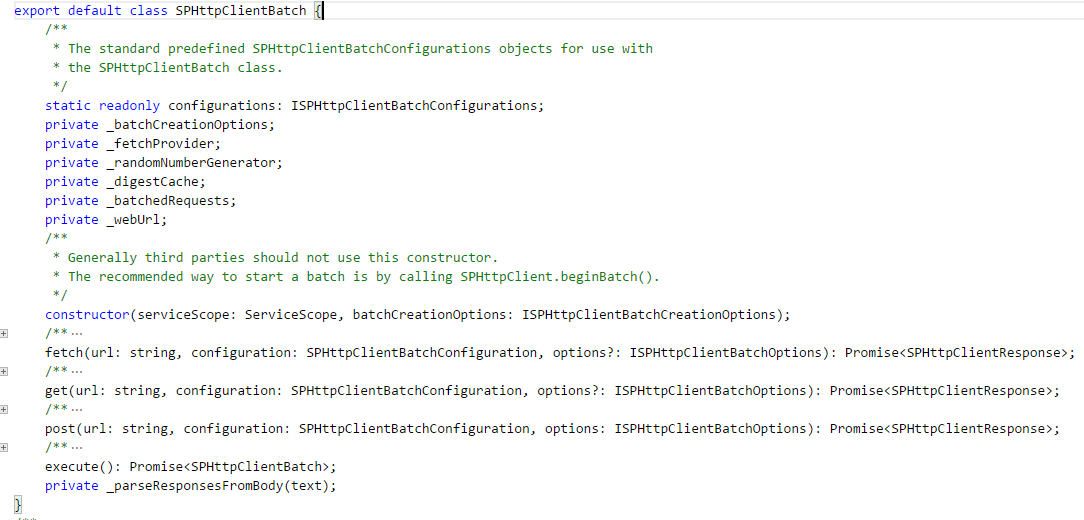
There is a new class called SPHttpClientBatch which is used to combine multiple REST requests. You can find more about this in the API docs:
https://dev.office.com/sharepoint/reference/spdx/sp-http/sphttpclient


As shown in the docs, the SPHttpClientBatch class has 2 primary methods: execute and fetch. The fetch method is used to queue all the different requests and execute is used to execute them all at once.

The get and post methods are syntactical sugar to call fetch but with the method parameter set to GET or POST.

The amazing thing about the fetch method is that it returns a Promise object which correlates to the API call being made. This way, when the Promise gets resolved/rejected after the execute method, we can easily track the response. This is better explained in the code below :)

So let's have a look at how we can utilize the SPHttpClientBatch class in an SPFx webpart:

First, we will need to import all the necessary modules:

And here is the actual code:


When this code is executed, we can see that a single batch request is sent to SharePoint containing the information about the requests in the Payload:

(click to zoom)


And when the Response is returned, we can hook into each individual Promise object to get its value:

(click to zoom)


Isn't this Awesome? It is going to save a lot of round trips to the server and also help in performance optimization.

Thanks for reading!

Monday, 22 August 2016

Making a POST request to SharePoint from an SPFx webpart

In this post, let's see how to make an HTTP POST request from an SharePoint Framework (SPFx) web part. There are lots of posts out already which show you how to make a GET request so I will not cover that here. It is fairly straightforward once you understand all the moving parts.

Import the necessary modules in your SPFx webpart code:

Now, the code which makes a POST request to create a list:

And my "Developer workbench" list is created:


Hope this helps.

Friday, 17 June 2016

SharePoint Online: Write User Profile Properties with REST API

In my previous posts, we saw how to Set user profile properties using JSOM & JavaScript and Set another user's profile properties with CSOM

Now, here are some code snippets I have put together to set SharePoint User Profile properties with the SharePoint REST API

  • This code only works with SharePoint Online at this time.
  • Can be used to set single value as well as multi value user profile properties.
  • Can be used to set default (OOB) as well as custom user profile properties.


1) Set Single Value User Profile property with REST API:


2) Set Mutli Value User Profile property with REST API:


Hope you find this useful!

Wednesday, 1 June 2016

SharePoint Online: Get UserProfile Properties with REST API Batching

In my previous post SharePoint 2013: Get UserProfile Properties with REST APIwe saw how to fetch SharePoint UserProfile properties with the REST API.

The only thing missing in that post was, at the time there was no way to get Multiple UserProfile Properties for a Specific User i.e. if you had an account name of a user and wanted to fetch multiple custom or default UserProfile properties, you could not do that in a single REST call. You would have to resort to either making multiple REST calls using the GetUserProfilePropertyFor function, or you would have to use the JavaScript Client Object Model (JSOM)

When I wrote that post, SharePoint Online did not support REST API batching. Since then, it has been implemented and as a result we can get multiple Custom/OOB User Profile properties in a single REST call.

Here is my code showing how to do it:

Here are some other great resources on SharePoint REST API Batching:

Batch Processing (OData Version 3.0)

Part 1 - SharePoint REST API Batching - Understanding Batching Requests

Make batch requests with the REST APIs

Thanks for reading!

Saturday, 24 January 2015

Glimpse of the upcoming Office 365 Video API

Update (21/04/2015): Here is the preview of the Office 365 Video API: https://msdn.microsoft.com/office/office365/APi/video-rest-operations

--------------------------------------------X--------------------------------------------------

A while ago, I wrote a post about getting all the video channels and videos from the Office 365 Video Service.  Shortly after that I got a word from Microsoft that there is going to be a public API for accessing Office 365 Videos. I was allowed to share the information as long as I mentioned that the API is not documented yet and is still being worked upon. So there is a possibility that it might change in the future so it is advised that this should not be used in production until it is fully stable and documented.

Here is how the API will work:

1) Get the right path from the discover endpoint:


https://site.sharepoint.com/sites/team/_api/VideoService.discover

The returned JSON will contain the following values among others:

{
    "IsVideoPortalEnabled": true,
    "VideoPortalUrl": "https://site.sharepoint.com/portals/hub"
}

IsVideoPortalEnabled will be true if your tenant has got Office 365 Video and VideoPortalUrl is the url which we will use to make further REST calls.

2) Get all Video channels with the VideoPortalUrl:


https://site.sharepoint.com/portals/hub/_api/VideoService/Channels

The returned JSON will contain all the channels with their unique GUIDs:

{
            "Description": "",
            "Id": "eaa748d7-97d6-43f1-8780-ce5c8acbf2bb",
            "TileHtmlColor": "#0072c6",
            "Title": "Development"
}

3) Get all videos from a single video channel:


Here, we will use the Id obtained from the previous call to get all the videos from a particular channel:

https://site.sharepoint.com/portals/hub/_api/VideoService/Channels('eaa748d7-97d6-43f1-8780-ce5c8acbf2bb')/Videos

Monday, 19 January 2015

Programmatically Follow or Unfollow a Delve Board with the REST API

In one of my previous posts, we saw how you can programmatically add a document to a Delve Board with the REST API. This is a follow up post to that in which we will see how to Follow or Unfollow a Delve board with the REST API. If you haven't already seen the previous article, I suggest you take a look at it because it explains how Delve works under the hood and how you can integrate Delve into your custom Office 365 solutions.

Please bear in mind that since Delve utilizes search internally, you will have to wait for a search crawl to take place in Office 365 before you can see results of the REST operation.

I have used JavaScript and the jQuery.ajax function to make calls to the Signals API. But you can use a variety of other options which support REST.

So without much further ado, here is the code to follow or unfollow a board in Delve:


Sunday, 18 January 2015

Get all videos from an Office 365 Video Channel with REST

Update (24/01/2015): I have just got a word from Microsoft that there is going to be a public API for accessing Office 365 Videos. The information I have got is that the API is not documented yet and is still being worked upon. So there is a possibility that it might change in the future so it is advised that this should not be used in production until it is fully stable and documented.

Here is a glimpse of the upcoming video API: http://www.vrdmn.com/2015/01/glimpse-of-upcoming-office-365-video-api.html

Original post follows:

In my previous post, we saw how you can get a list of all the video channels in your Office 365 portal with the REST API. In this post, we will see how to get a list of all the videos in a particular Office 365 Video Channel with the SharePoint REST API.

Each video channel is underpinned by a separate site collection in SharePoint Online. When you upload a video to a channel, it gets uploaded in the "Videos" library of the root web of that site collection. A copy of the video is sent to Azure Media Services which then transcodes it so that it can be played from a number of devices. Since the video is stored in SharePoint Online, the size of the video counts against your Tenant storage.

Since each video channel is a site collection, you can use the REST API to get all sorts of information about the channel including the list of videos.

So this is a channel called "Development" on my Office 365 Video Portal. You can see that there are 3 videos uploaded to this channel:


In order to get the list of videos in a video channel, we need to make a REST call to the SharePoint Search REST API:

_api/search/query?querytext='SiteTitle:"Development" AND ContentTypeId:0x010100F3754F12A9B6490D9622A01FE9D8F01200F9B0E79C5EBC0545B80F5F1B3985E159'&selectproperties='Path,Title,SiteTitle'

The ContentTypeId is the id of the new "Cloud Video" content type and the SiteTitle will be the name of the Channel.

Here is the complete code. I have used JavaScript and the jQuery.ajax function to make calls to the SharePoint REST API. But you can use a variety of other options like the JSOM, CSOM or even the Office 365 APIs. Since all the channels are by default open to users in the tenant, there should not be any major challenges to authentication around this. I haven't tested the code for these APIs myself.


And the logs in my Dev tools console:


Thanks for reading!

Get all documents from an Office 365 Group with REST

In my previous post, we saw how you can get a list of all the groups in your Office 365 portal with the REST API. Now, if you are building a solution on top of the Office 365 platform and want a list of all the documents in a particular Office 365 Group, you can get them using the REST API.

As discussed in my previous post, each group is underpinned by a separate site collection in SharePoint Online. When you upload a document to a group, it gets uploaded in the "Documents" library of the root web of that site collection. So you can use the REST API to get all sorts of information about the group including the list of documents. 

Here is a test group called "Technical Team" I have created in Office 365 for the purpose of this post. I have also uploaded 2 documents to it:


In order to get the list of documents in the group, we need to make a REST call to the SharePoint Search REST API:

_api/search/query?querytext='SiteTitle:"Technical Team" AND ContentTypeId:0x0101007DB6FD427B6228409ED888DF766B27C9'&selectproperties='Title,Path,SiteTitle'

The ContentTypeId is the id of the content type which is associated to the document when a document is uploaded to an Office 365 group.

Here is the complete code. I have used JavaScript and the jQuery.ajax function to make calls to the SharePoint REST API. But you can use a variety of other options like the JSOM, CSOM or even the Office 365 APIs. Since all the groups are by default open to users in the tenant, there should not be major challenges to authentication around this. I haven't tested the code for these APIs myself. 


And the logs in my Dev tools console:


Thanks for reading!

Saturday, 17 January 2015

Get all Office 365 Video Channels, Groups and Delve Boards with REST

Office 365 has introduced 3 new portals recently: Videos, Groups and Delve. Behind the scenes, the architecture of Videos and Groups is such that each Video channel is a site collection and so is each Group. For Delve boards, each board is saved as a Tag and when you add a document to a board, the document is tagged with the name of the board.

If you are working on a solution for Office 365 and want to integrate Videos, Groups or Delve, here is how you can get a list of all of them using the SharePoint REST API:

1) Get all Office 365 Video Channels with REST API:


https://siteurl.sharepoint.com/_api/search/query?querytext='contentclass:sts_site WebTemplate:POINTPUBLISHINGTOPIC'&SelectProperties='WebTemplate,Title,Path'&rowlimit=50


2) Get all Office 365 Groups with REST API:


https://siteurl.sharepoint.com/_api/search/query?querytext='contentclass:sts_site WebTemplate:Group'&SelectProperties='WebTemplate,Title,Path'&rowlimit=50


3) Get all Delve Boards with REST API:


https://siteurl.sharepoint.com/_api/search/query?querytext='(Path:"TAG://PUBLIC/?NAME=*")'&Properties='IncludeExternalContent:true'&selectproperties='Path,Title'&rowlimit=50

Friday, 9 January 2015

Programmatically add a document to a Delve Board with REST

Microsoft recently launched the Boards feature in Delve, with which you can create Pinterest like boards and add content to them. You can add documents from your SharePoint sites as well as OneDrive for Business sites.  Here is a great introduction to the functionality: http://blogs.office.com/2015/01/07/introducing-boards-office-delve-new-way-organize-share-work/ 
I have been playing around a bit with this feature and have some interesting things to share. So Lets have a look at how this has been implemented under the hood.

1) The same Signals API which I have blogged about here is used in boards. AJAX requests are sent to the /_api/signalstore/signals endpoint when any operations are made in Delve (eg. add document to board)

2) Boards are internally referred to as "Tags". So when you add a document to a board, it gets "Tagged" with the name of the board. More on this later.

3) There seem to be 2 components in play. When you add a document to board, there is an "immediate" add in the front-end as well as a normal add when the incremental crawl adds the document in the Search Index. The front-end immediately  shows the user  that the document is added to a board. This is a very good solution as otherwise the user would have to wait till the incremental crawl has taken place.

Let us have a look at the API now. All the API is doing is adding/removing documents to boards and following/unfollowing boards. Unlike my previous post about modifying relationship signals in the Office Graph, with this API you will not be interfering with your Office Graph relationships so I think you can safely use this API in your solutions.  Now lets take a look at what actually happens under the hood:


There is a new button introduced in the document card. So when you click on "Add to Board" and select a board from the dropdown,  here is the JSON which is sent to the Signals API: 

(click to zoom)


Basically, it has 2 Important pieces of data: 

1) The document gets tagged with the name of the board. This tag is then used by Delve to search and get all documents belonging to a certain board. This is done by the first object with ActionType:Tag and Item Id as the absolute url of the document.

2) The current user is made to follow the Tag (which is the board name) so that it shows up on the left hand side in Delve. This is done by the second object with ActionType: Follow and Item Id: ‘Path=”TAG://PUBLIC/?NAME=MY+TEST+BOARD”  where the name of the board I selected was "My Test Board"

If you want to reproduce this exact behavior in your solution, here is the sample code you can start with. Please be aware that that this code only tags the document with the board name so that it is added to the search index and follows the board so that it appears in your boards in Delve. This does not do the front-end add to the board. So you will have to wait for an incremental crawl to run in Office 365 for the document to get added to the board and show up in Delve. I have observed this can take anywhere from 5 to 30 minutes. 

Here is the code:


The document will get added to the board:


Hope you enjoyed this post. I have plans to follow this up with some code samples which show how to remove documents from boards, unfollow boards and some other new functionality. Thanks for reading.

Wednesday, 11 June 2014

Improving REST API performance with JSON Light

While browsing the SharePoint 2013 SP1 change log , I came across something really interesting:

2817429​ Minimal and no metadata are now enabled as supported JSON formats.

This really caught my attention as it was something I was waiting for. When we make a call with the REST API, there is a lot of additional data which we get back in the response. This additional data consists of the metadata and the Hyper Media Controls along with the required JSON data.  To know more about this, please see this excellent post describing REST Maturity Models: http://martinfowler.com/articles/richardsonMaturityModel.html

This makes the payload size of the REST response too big. If you are developing a REST heavy application, then each extra byte of data that travels over the wire to your client adds up and ends up hampering performance.

I did some digging around and found out that my SharePoint Online Tenant was already supporting these JSON formats! All I had to do was to modify the Accept header of my REST call.

Note: As mentioned before, for these formats to work on an On-Premises SharePoint 2013, you will need to install SP1.

I ran some tests using the Chrome Developer Tools and Postman REST Client to see the effect on the payload size.

All tests were done to simply fetch the current web details with the following api call:


https://siteurl.sharepoint.com/sites/test/_api/web


1) Accept : "application/json;odata=verbose"


According to Microsoft Guidance published before, to get the JSON data back from the REST call, we need to specify the Accept header as "application/json;odata=verbose" But I think that guidance might be a little outdated now. Here is the result of the REST Call made with the above header:

Payload
Size: 2.0 KB
Content Size: 5.1 KB

    (Click on Image to Enlarge)

And here is the JSON we get back. You can see that there is a lot of metadata along with the Hypermedia Controls. 


2) Accept : "application/json;odata=minimalmetadata" (OR Accept : "application/json")


Now when optimizing for performance, we do not need all the metadata and all the Hyper Media Controls as we are only concerned with the JSON data. We can then use this header to optimize them. It will return the required JSON with very minimal metadata attached to it. This is also the default option if you only specify "application/json" in your Accept header without specifying the odata parameter.

Payload
Size: 1.5 KB
Content Size: 1.0 KB

   (Click on Image to Enlarge)

And this is the JSON returned. You can see that the Hyper Media Controls are no longer returned and only some of the metadata is returned.


3) Accept : "application/json;odata=nometadata"


This is the option for the extreme "optimizers" who want no metadata or Hypermedia Controls attached to the response and are only concerned with the JSON

Payload
Size: 1.4 KB
Content Size: 800 Bytes

   (Click on Image to Enlarge)


And this is the JSON returned:

So as you can see, if you want to reduce the payload size from the REST response, you can use the different JSON formats depending on the degree of optimization you want.

Hope you found this information useful!

Friday, 29 November 2013

Set UserProfile Picture using Client APIs in SharePoint 2013

With the SharePoint 2013 Client APIs, you can only read the User Profile Properties but not modify them. However the only property you can modify is the Current User's profile picture. Source article: http://msdn.microsoft.com/en-us/library/jj920104.aspx

The REST API expects the image to be in the arraybuffer format in order to be set. To convert an image to arraybuffer, we will be using the XMLHttpRequest object

The XMLHttpRequest object allows us to specify the format in which we want the content to be downloaded. The available options are: arraybuffer, blob, json, text, document and some other browser specific formats.

Complete documentation for the XMLHttpRequest object:
https://developer.mozilla.org/en-US/docs/Web/API/XMLHttpRequest

Also a very good article on how to use the XMLHttpRequest object:
https://developer.mozilla.org/en-US/docs/Web/API/XMLHttpRequest/Using_XMLHttpRequest

A very important point to note is that XMLHttpRequest will work with cross domain images only if the server which is hosting the images allows cross domain requests to be made.

Modern browsers support cross-site requests by implementing the web applications working group's Access Control for Cross-Site Requests standard.  As long as the server is configured to allow requests from your web application's origin, XMLHttpRequest will work.  Otherwise, an INVALID_ACCESS_ERR exception is thrown.

For the sake of simplicity, we will be using the images hosted in the same domain as SharePoint itself so we do not have to worry about cross domain requests.

1) Set Current User's UserProfile Picture using the REST API:


2) Set Current User's UserProfile Picture using the .NET Managed Client Object Model:


This is relatively easy as the SetMyProfilePicture managed method expects the image to be a System.IO.Stream. 

This code assumes you are working with SharePoint Online/Office 365. If you are working with an On-Premise deployment, you do not need to use the SharePointOnlineCredentials class. You can simply create an instance of the NetworkCredentials class for the authentication.

Friday, 19 July 2013

SharePoint: Get User Profile Properties with REST API

In my last post SharePoint 2013: Working with User Profiles & JavaScript CSOM we saw how to get SharePoint UserProfile Properties using the JavaScript Client Object Model. In this post lets have a look at how to get them using the REST API. Here is a quick reference for the REST API endpoints.

(List of All User Properties and UserProfile Properties at the end of the post)


1) Get all properties of current user:

http://siteurl/_api/SP.UserProfiles.PeopleManager/GetMyProperties


2) Get single property of current user:

http://siteurl/_api/SP.UserProfiles.PeopleManager/GetMyProperties/PictureUrl
OR
http://siteurl/_api/SP.UserProfiles.PeopleManager/GetMyProperties?$select=PictureUrl


3) Get Multiple Properties for the current user:

http://siteurl/_api/SP.UserProfiles.PeopleManager/GetMyProperties?$select=PictureUrl,AccountName


4) Get all properties of Specific User:


For Office 365/SharePoint Online:
http://siteurl/_api/SP.UserProfiles.PeopleManager/GetPropertiesFor(accountName=@v)?@v='i:0%23.f|membership|vardhaman@siteurl.onmicrosoft.com'

For SharePoint 2013 On-Premises:
http://siteurl/_api/SP.UserProfiles.PeopleManager/GetPropertiesFor(accountName=@v)?@v='domain\username'


5) Get Specific UserProfile Property of Specific User:


For Office 365/SharePoint Online:
http://siteurl/_api/SP.UserProfiles.PeopleManager/GetUserProfilePropertyFor(accountName=@v,propertyName='LastName')?@v='i:0%23.f|membership|vardhaman@siteurl.onmicrosoft.com'


For SharePoint 2013 On-Premises:
http://siteurl/_api/SP.UserProfiles.PeopleManager/GetUserProfilePropertyFor(accountName=@v,propertyName='LastName')?@v='domain\username'


6) Get Multiple UserProfile Properties for Specific User:


Update (01/06/2016): Since the time I wrote this post, REST API batching has been implemented in SharePoint Online. As a result, we can make multiple REST requests to the GetUserProfilePropertiesFor function in a single REST call. This way, we can get Multiple custom/OOB UserProfile Properties for a Specific User without making multiple calls.

Here is my post on it:
SharePoint Online: Get UserProfile Properties with REST API Batching

Original Post Continues:

http://siteurl/_api/SP.UserProfiles.PeopleManager/GetUserProfilePropertiesFor
_api/SP.UserProfiles.PeopleManager/GetUserProfilePropertiesFor

As far as my research is concerned, this method is NOT supported in the REST API. The call to this method returns the following error:

"The method GetUserProfilePropertiesFor cannot be invoked as its parameter propertiesForUser is not supported."

If anybody finds any additional information on this, then I would love to update my blog on it. Here is my code for executing the above method:


-------

List of User Properties (Use the GetPropertiesFor function for these):

AccountName
DirectReports
DisplayName
Email
ExtendedManagers
ExtendedReports
IsFollowed
LatestPost
Peers
PersonalUrl
PictureUrl"
Title
UserProfileProperties
UserUrl

List of User Profile Properties (Use the GetUserProfilePropertyFor function for these):

AboutMe
SPS-LastKeywordAdded
AccountName
SPS-Locale
ADGuid
SPS-Location
Assistant
SPS-MasterAccountName
CellPhone
SPS-MemberOf
Department
SPS-MUILanguages
EduExternalSyncState
SPS-MySiteUpgrade
EduOAuthTokenProviders
SPS-O15FirstRunExperience
EduPersonalSiteState
SPS-ObjectExists
EduUserRole
SPS-OWAUrl
Fax
SPS-PastProjects
FirstName
SPS-Peers
HomePhone
SPS-PersonalSiteCapabilities
LastName
SPS-PersonalSiteInstantiationState
Manager
SPS-PhoneticDisplayName
Office
SPS-PhoneticFirstName
PersonalSpace
SPS-PhoneticLastName
PictureURL
SPS-PrivacyActivity
PreferredName
SPS-PrivacyPeople
PublicSiteRedirect
SPS-ProxyAddresses
QuickLinks
SPS-RegionalSettings-FollowWeb
SID
SPS-RegionalSettings-Initialized
SISUserId
SPS-ResourceAccountName
SPS-AdjustHijriDays
SPS-ResourceSID
SPS-AltCalendarType
SPS-Responsibility
SPS-Birthday
SPS-SavedAccountName
SPS-CalendarType
SPS-SavedSID
SPS-ClaimID
SPS-School
SPS-ClaimProviderID
SPS-ShowWeeks
SPS-ClaimProviderType
SPS-SipAddress
SPS-ContentLanguages
SPS-Skills
SPS-DataSource
SPS-SourceObjectDN
SPS-Department
SPS-StatusNotes
SPS-DisplayOrder
SPS-Time24
SPS-DistinguishedName
SPS-TimeZone
SPS-DontSuggestList
SPS-UserPrincipalName
SPS-Dotted-line
SPS-WorkDayEndHour
SPS-EmailOptin
SPS-WorkDayStartHour
SPS-FeedIdentifier
SPS-WorkDays
SPS-FirstDayOfWeek
Title
SPS-FirstWeekOfYear
UserName
SPS-HashTags
UserProfile_GUID
SPS-HireDate
WebSite
SPS-Interests
WorkEmail
SPS-JobTitle
WorkPhone
SPS-LastColleagueAdded